Clean Truck Check Credentialed Tester

CTC-VIS / ILLUSTRATED OWNER GUIDE

Register. Report.
Stay on record.

Follow the official CARB sequence with original portal screenshots, from your first account to vehicle reporting, payment and compliance records.

Screenshots: California Air Resources Board. Explanations adapted by E-ZCARB. Screens may show historical examples or fees; use the amounts and instructions in the current official portal. Reviewed October 10, 2026. Original CARB guide

Create your account

STEP 01

Open CTC-VIS

Choose Register for a new account, or Log In if you already have one.
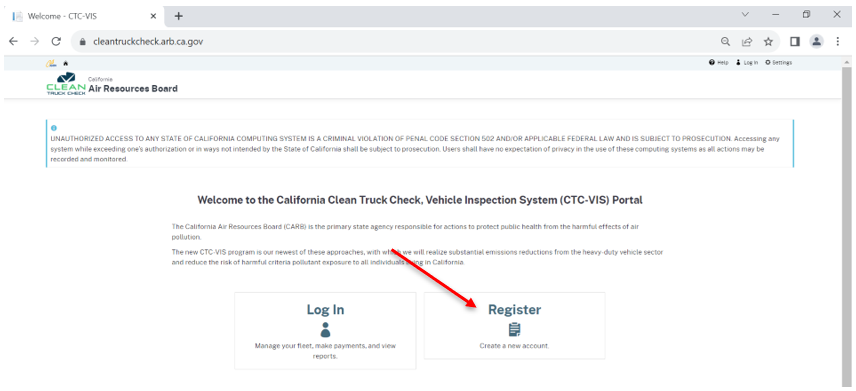
CARB CTC-VIS screenshot: Open CTC-VIS
Official CARB screenshot · Select to enlarge
STEP 02

Choose your login email

Use an email you can access. Your complete email address becomes your login username. Select Continue.
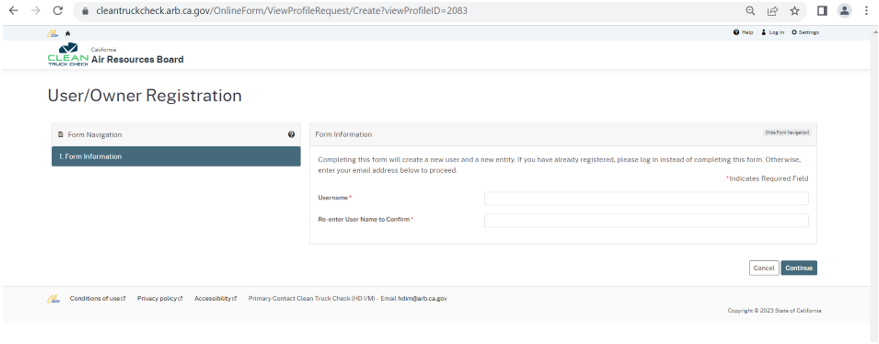
CARB CTC-VIS screenshot: Choose your login email
Official CARB screenshot · Select to enlarge
STEP 03

Enter the owner or company details

Choose the correct entity type and complete the required information accurately.
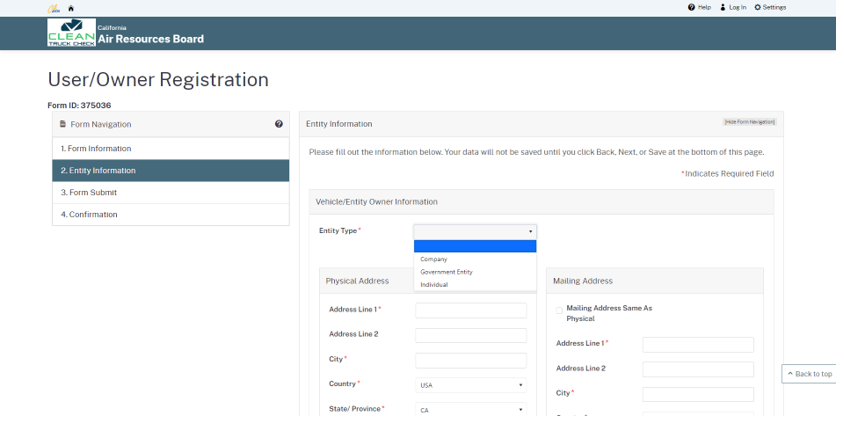
CARB CTC-VIS screenshot: Enter the owner or company details
Official CARB screenshot · Select to enlarge
STEP 04

Review and submit

Continue to the submission screen, review your details and certify their accuracy before submitting.
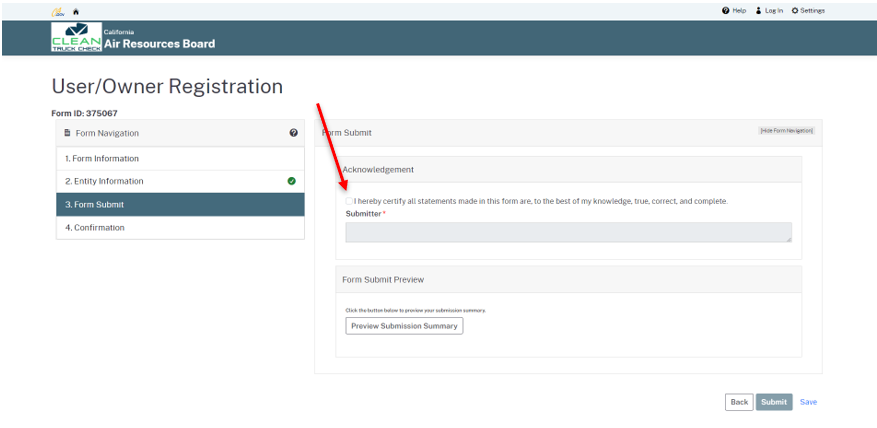
CARB CTC-VIS screenshot: Review and submit
Official CARB screenshot · Select to enlarge
STEP 05

Activate the account

Watch for the CARB Admin email. Follow its activation instructions and create your password. Contact CARB if the message does not arrive.
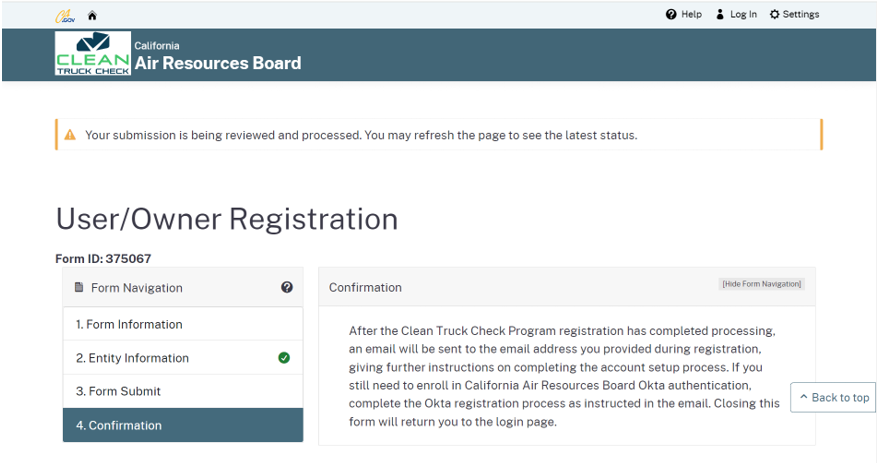
CARB CTC-VIS screenshot: Activate the account
Official CARB screenshot · Select to enlarge

Add your vehicles

STEP 06

Open your entity

From the main menu, open My Info / My Entity.
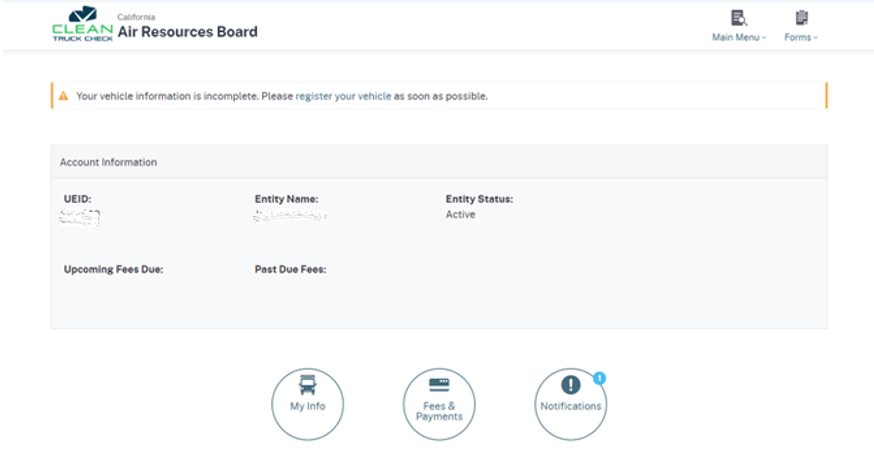
CARB CTC-VIS screenshot: Open your entity
Official CARB screenshot · Select to enlarge
STEP 07

Start a vehicle submission

Select Add Vehicle. Export-Excel downloads existing vehicle information for your records.
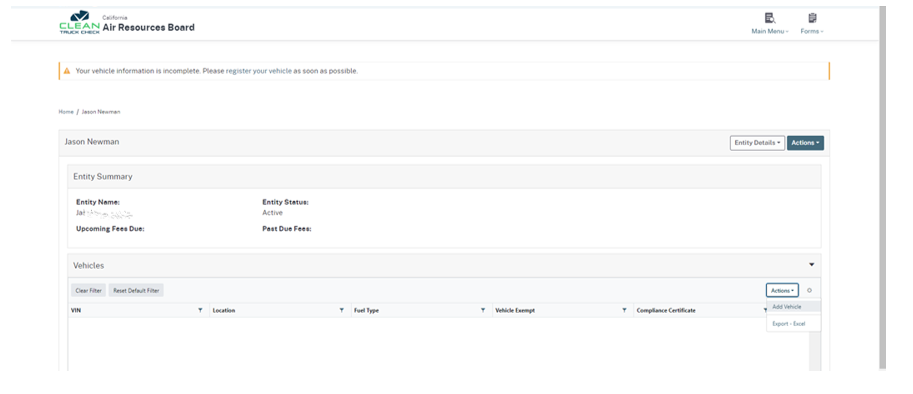
CARB CTC-VIS screenshot: Start a vehicle submission
Official CARB screenshot · Select to enlarge
STEP 08

Describe the submission

Add a useful description of the changes. The official guide notes that saved descriptions cannot be edited.
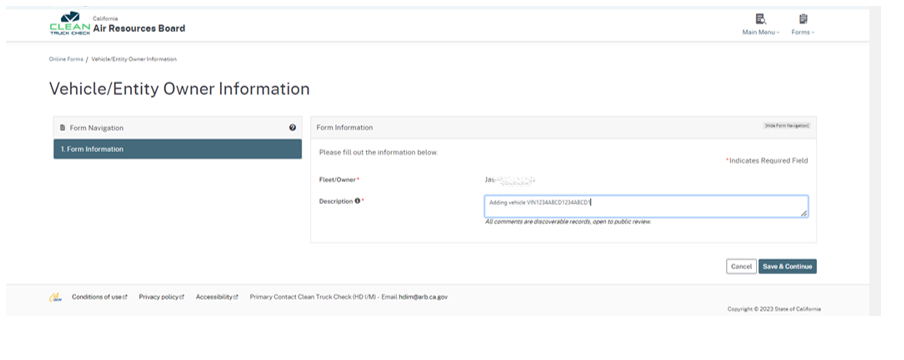
CARB CTC-VIS screenshot: Describe the submission
Official CARB screenshot · Select to enlarge
STEP 09

Confirm entity information

Check the pre-filled owner or company details before continuing.
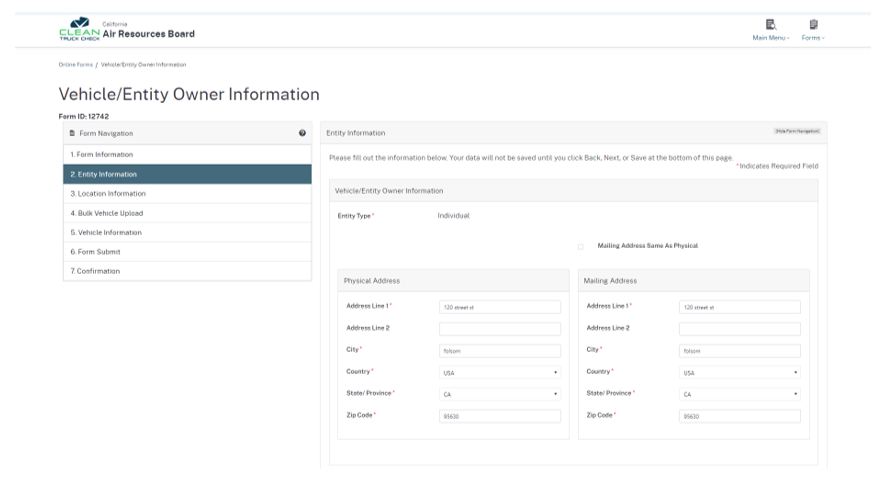
CARB CTC-VIS screenshot: Confirm entity information
Official CARB screenshot · Select to enlarge
STEP 10

Confirm locations

Company and government accounts should verify their locations. Individual accounts do not need this step.
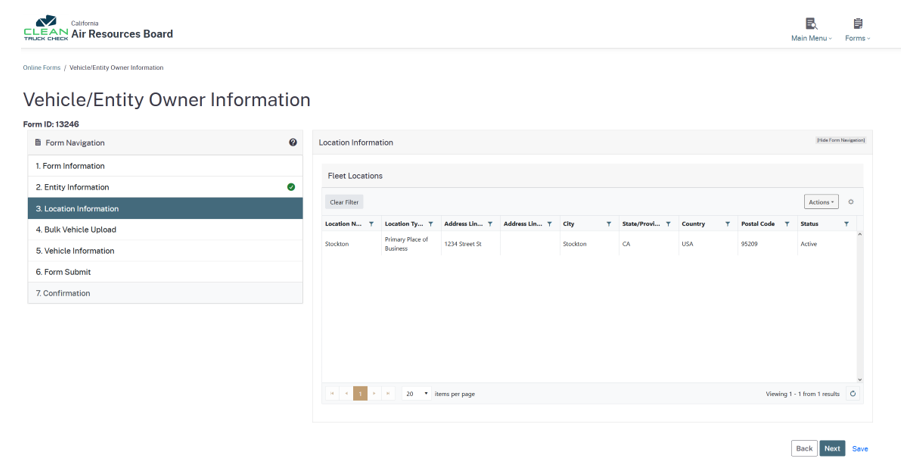
CARB CTC-VIS screenshot: Confirm locations
Official CARB screenshot · Select to enlarge
STEP 11

Individual reporting

Individual owners enter vehicles one at a time; they do not complete bulk-upload details.
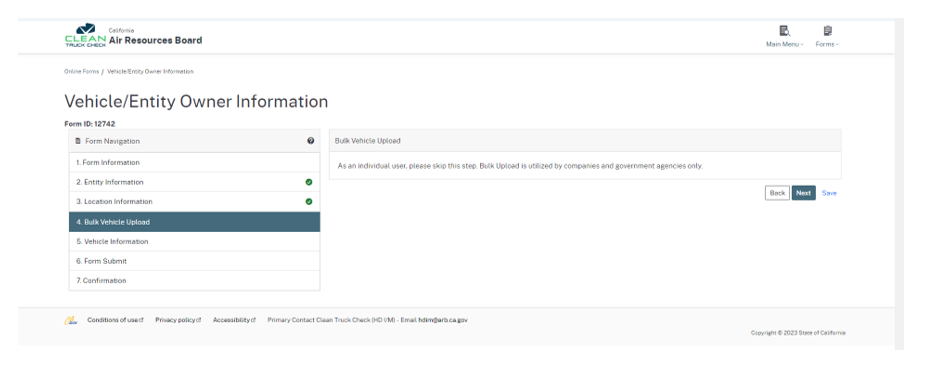
CARB CTC-VIS screenshot: Individual reporting
Official CARB screenshot · Select to enlarge
STEP 12

Fleet bulk upload

Company and government accounts can use the official bulk template. Follow its field requirements.
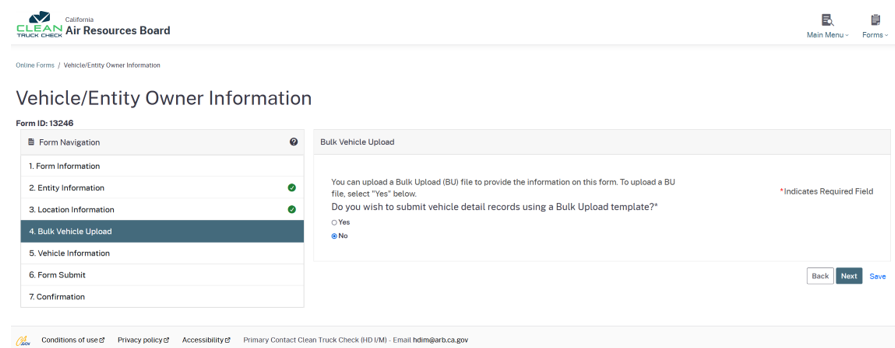
CARB CTC-VIS screenshot: Fleet bulk upload
Official CARB screenshot · Select to enlarge
STEP 13

Add an individual vehicle

Within Vehicle Information, select Actions, then Add Vehicle.
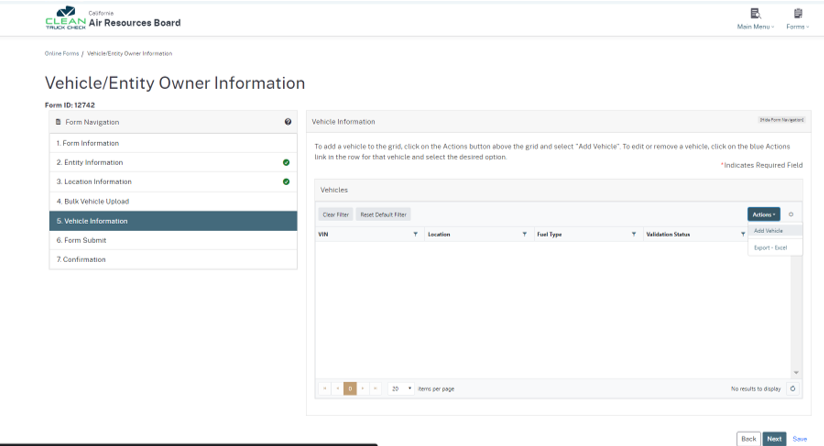
CARB CTC-VIS screenshot: Add an individual vehicle
Official CARB screenshot · Select to enlarge
STEP 14

Enter vehicle information

Match the VIN to the vehicle and registration documents. Complete required fields; use the official irregular-VIN process only when appropriate.
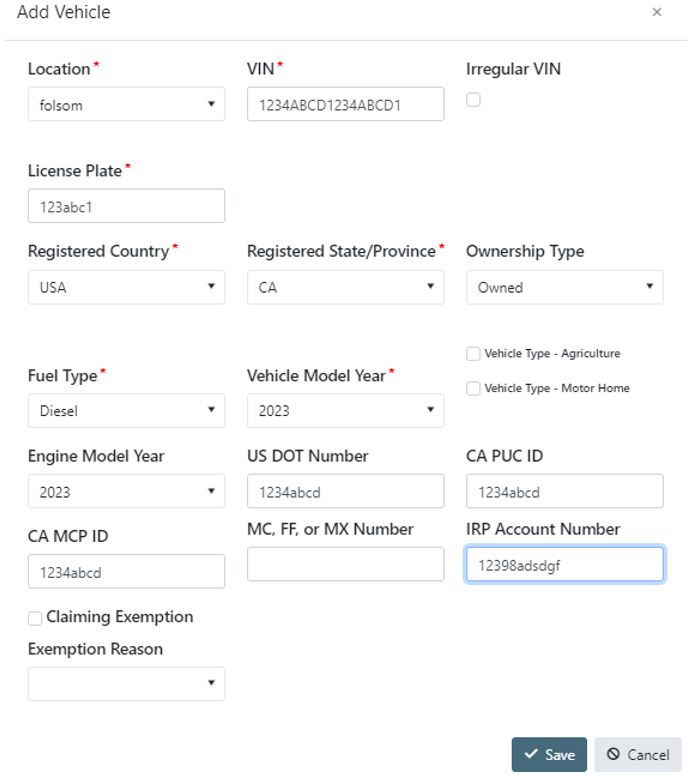
CARB CTC-VIS screenshot: Enter vehicle information
Official CARB screenshot · Select to enlarge
STEP 15

Review new and changed records

Current Vehicles lists existing records. New and Modified Vehicles shows additions and edits in this submission.
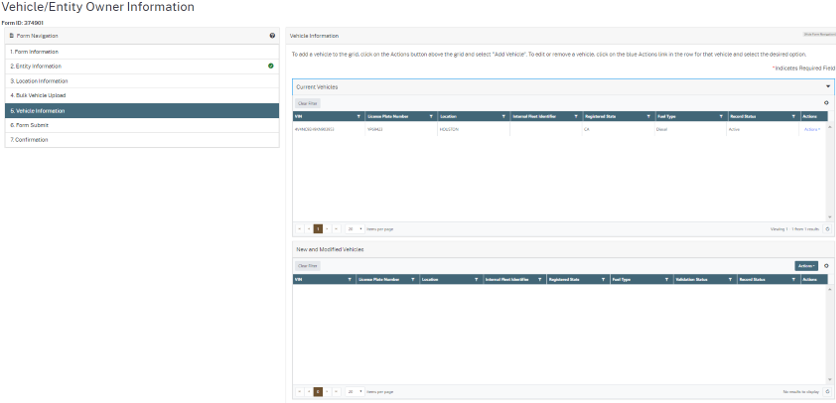
CARB CTC-VIS screenshot: Review new and changed records
Official CARB screenshot · Select to enlarge
STEP 16

Certify the vehicle submission

Preview the summary. Correct errors using Back, then certify the information and submit.
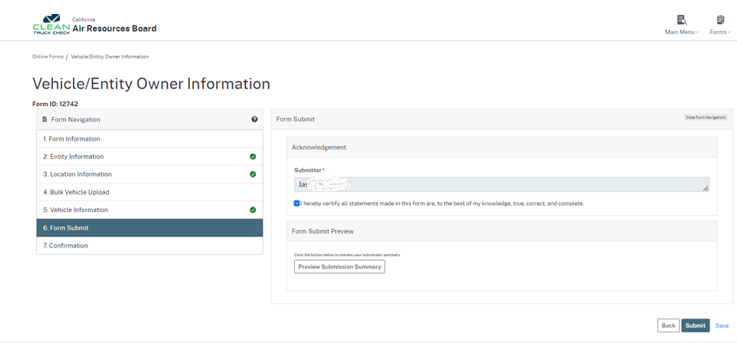
CARB CTC-VIS screenshot: Certify the vehicle submission
Official CARB screenshot · Select to enlarge
STEP 17

Check the confirmation

The confirmation page indicates that the vehicle information form was submitted.
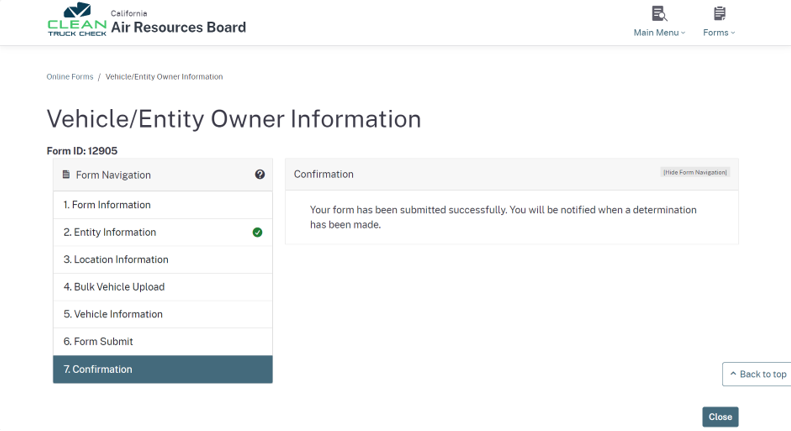
CARB CTC-VIS screenshot: Check the confirmation
Official CARB screenshot · Select to enlarge
STEP 18

Return to the vehicle list

Open My Entity / My Info and check that the reported vehicles appear.
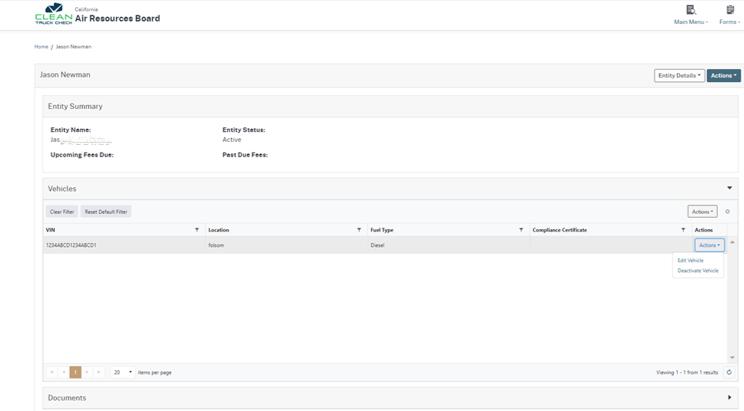
CARB CTC-VIS screenshot: Return to the vehicle list
Official CARB screenshot · Select to enlarge

Pay the government compliance fee

STEP 19

Open the fee section

After reporting vehicles, return to the main menu to review compliance fees.
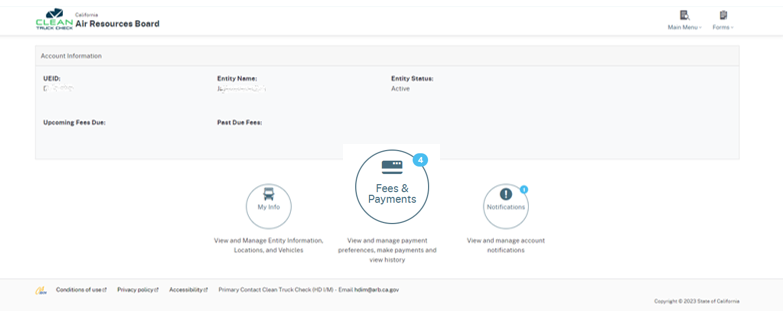
CARB CTC-VIS screenshot: Open the fee section
Official CARB screenshot · Select to enlarge
STEP 20

Select the fees due

Review the listed vehicles and due fees, then add the required items to your cart.
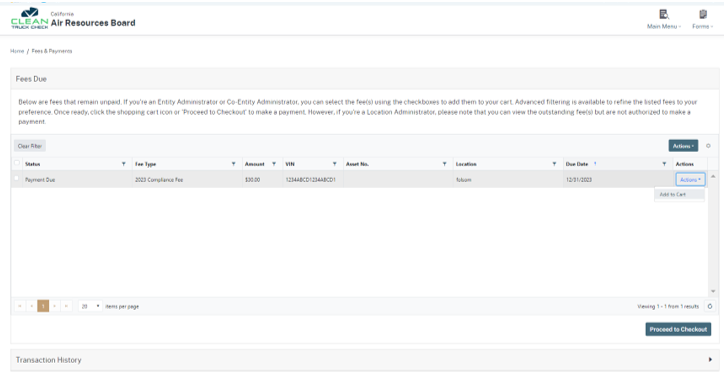
CARB CTC-VIS screenshot: Select the fees due
Official CARB screenshot · Select to enlarge
STEP 21

Review the cart

Check that every intended vehicle is included before proceeding to checkout.
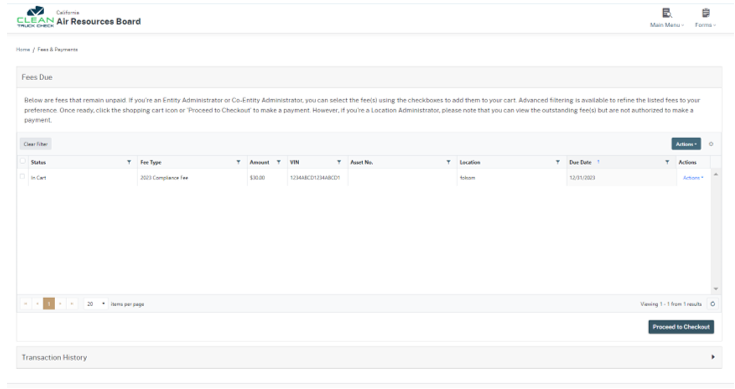
CARB CTC-VIS screenshot: Review the cart
Official CARB screenshot · Select to enlarge
STEP 22

Choose a payment method

Review the vehicle list and total. Available payment options and charges appear on the official checkout.
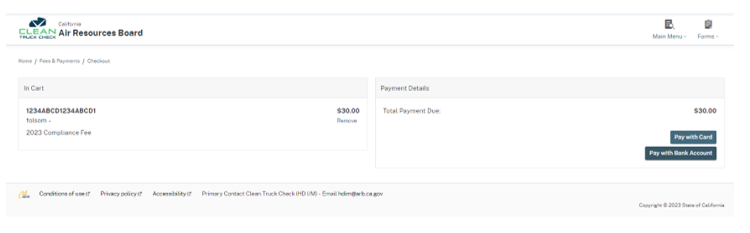
CARB CTC-VIS screenshot: Choose a payment method
Official CARB screenshot · Select to enlarge
STEP 23

Electronic check

Enter and verify banking information only on the official portal. The guide notes that e-check processing can take up to seven business days.
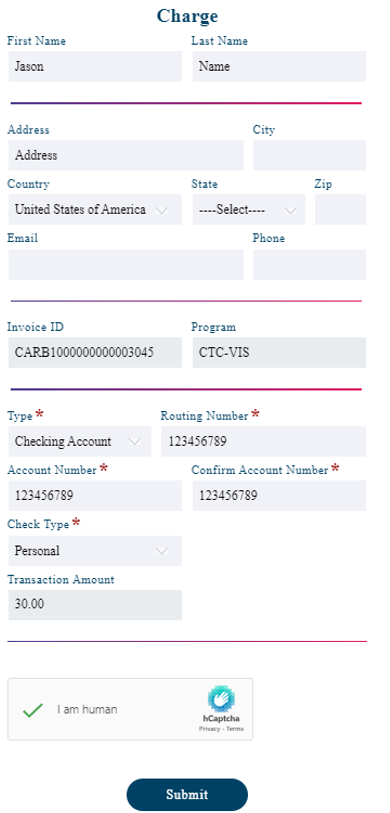
CARB CTC-VIS screenshot: Electronic check
Official CARB screenshot · Select to enlarge
STEP 24

Debit or credit card

Review card details and the convenience fee shown by the payment provider before completing payment.
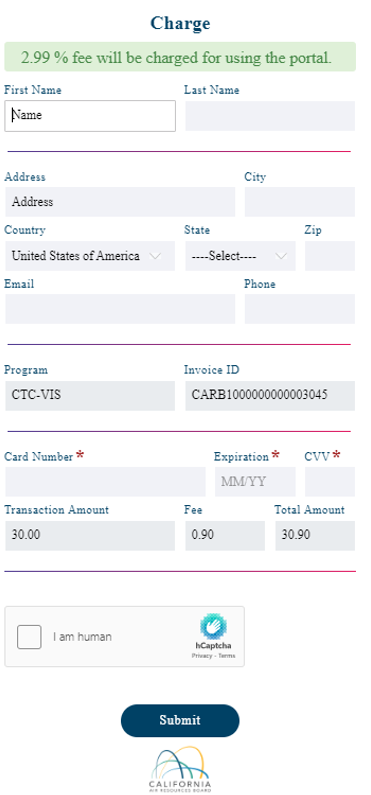
CARB CTC-VIS screenshot: Debit or credit card
Official CARB screenshot · Select to enlarge
STEP 25

Find Fees & Payments

Open Entity Details from My Entity / My Info, then choose Fees & Payments.
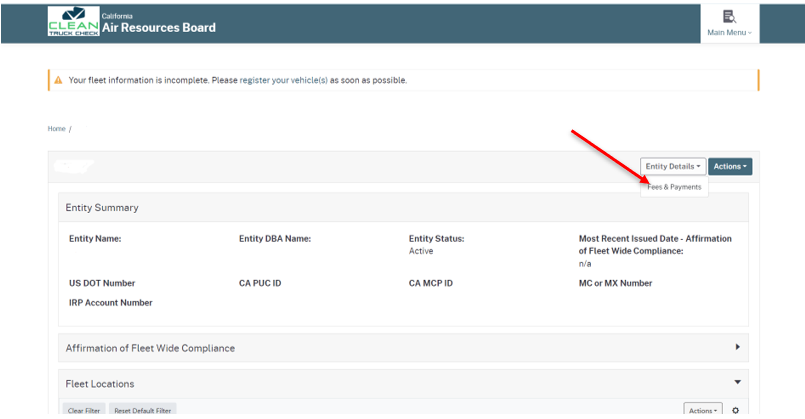
CARB CTC-VIS screenshot: Find Fees & Payments
Official CARB screenshot · Select to enlarge
STEP 26

Save the receipt

Review Transaction History for payment status and receipts. A payment in progress is not the same as a completed compliance record.
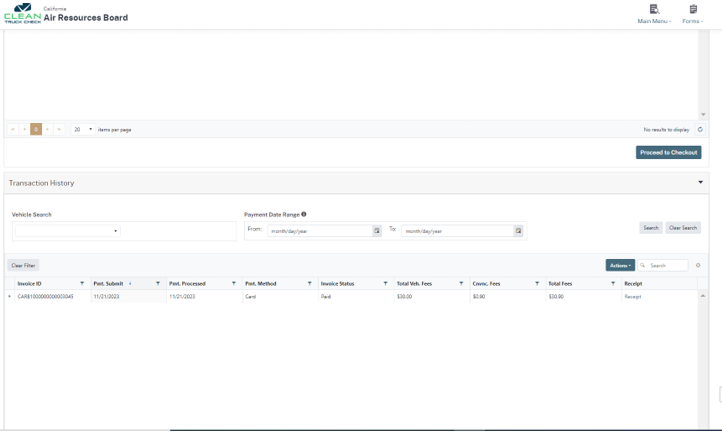
CARB CTC-VIS screenshot: Save the receipt
Official CARB screenshot · Select to enlarge

Manage login and company details

STEP 27

Reset a forgotten password

Use Forgot password on the official login screen. If the reset fails, contact CARB with the account email.
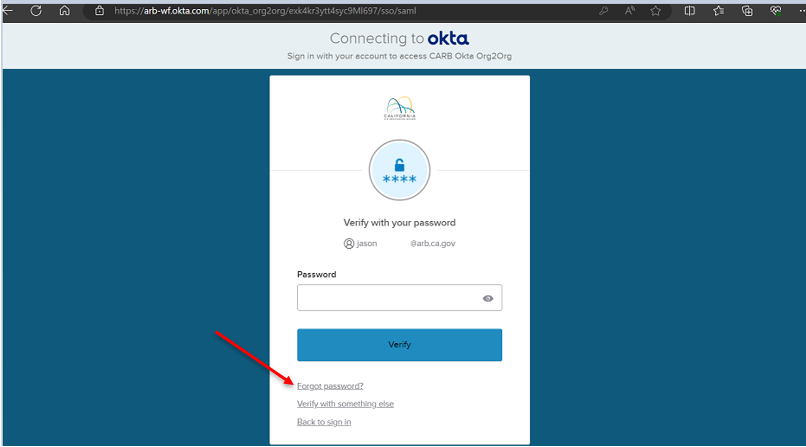
CARB CTC-VIS screenshot: Reset a forgotten password
Official CARB screenshot · Select to enlarge
STEP 28

Open personal details

Choose Main Menu, then My Details to reach Person Details.
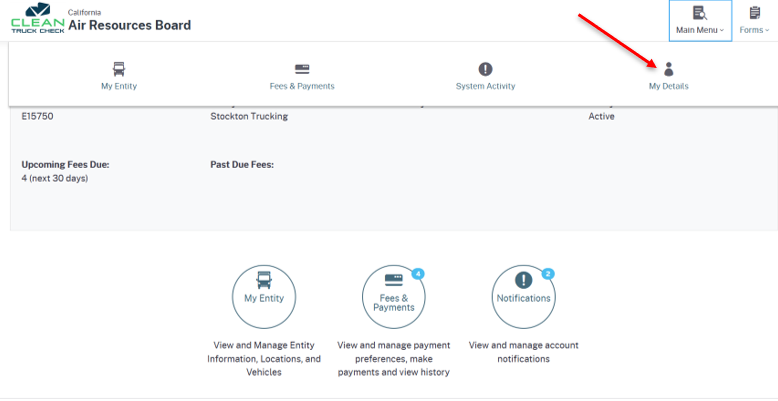
CARB CTC-VIS screenshot: Open personal details
Official CARB screenshot · Select to enlarge
STEP 29

Find contact actions

Use Actions to edit the permitted contact fields. Ask CARB for help changing the CTC-VIS account email.
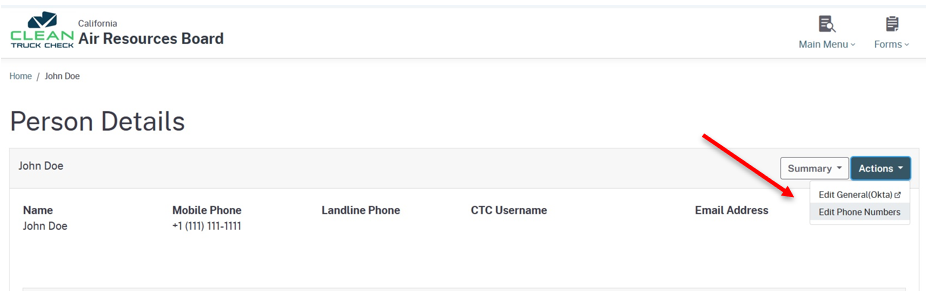
CARB CTC-VIS screenshot: Find contact actions
Official CARB screenshot · Select to enlarge
STEP 30

Update phone numbers

Enter the correct mobile or landline number and save.
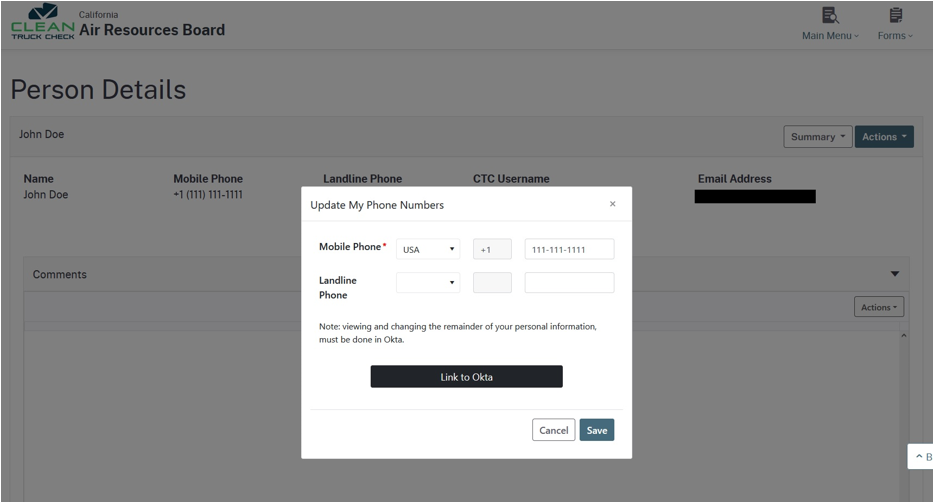
CARB CTC-VIS screenshot: Update phone numbers
Official CARB screenshot · Select to enlarge
STEP 31

Open identity profile settings

The guide shows Actions, then Edit General (Okta), for profile settings.
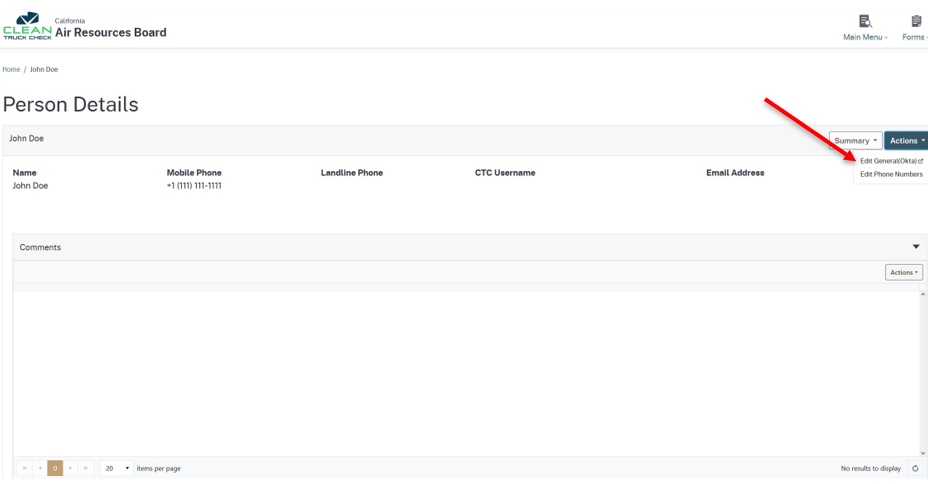
CARB CTC-VIS screenshot: Open identity profile settings
Official CARB screenshot · Select to enlarge
STEP 32

Edit the profile

Select Edit Profile and complete the identity verification requested by the official system.
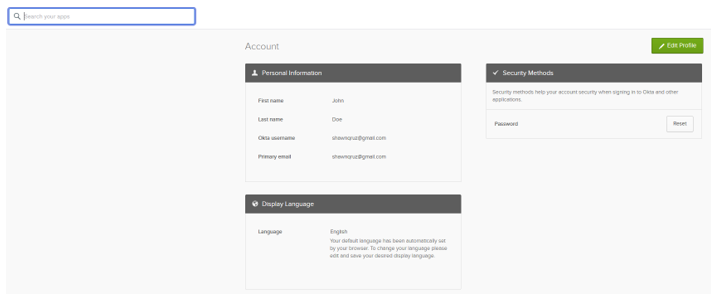
CARB CTC-VIS screenshot: Edit the profile
Official CARB screenshot · Select to enlarge
STEP 33

Verify your identity

Use the offered email or password method. Never share account verification codes with a service provider.
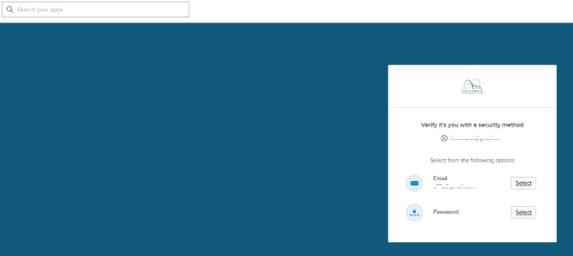
CARB CTC-VIS screenshot: Verify your identity
Official CARB screenshot · Select to enlarge
STEP 34

Review editable details

After verification, review the profile fields available for editing.
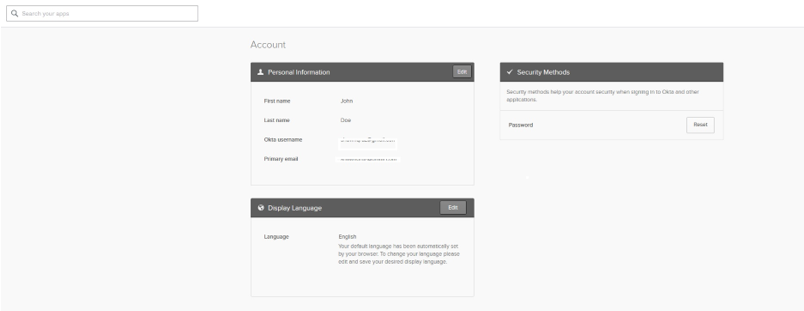
CARB CTC-VIS screenshot: Review editable details
Official CARB screenshot · Select to enlarge
STEP 35

Save profile changes

Save changes and follow any confirmation email. A changed primary email does not automatically change the username.
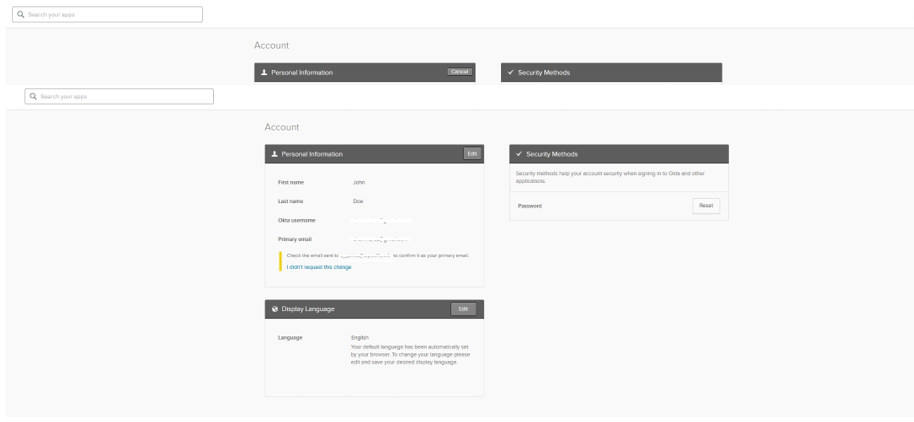
CARB CTC-VIS screenshot: Save profile changes
Official CARB screenshot · Select to enlarge
STEP 36

Open company details

In My Entity, choose Actions, then Edit Details.
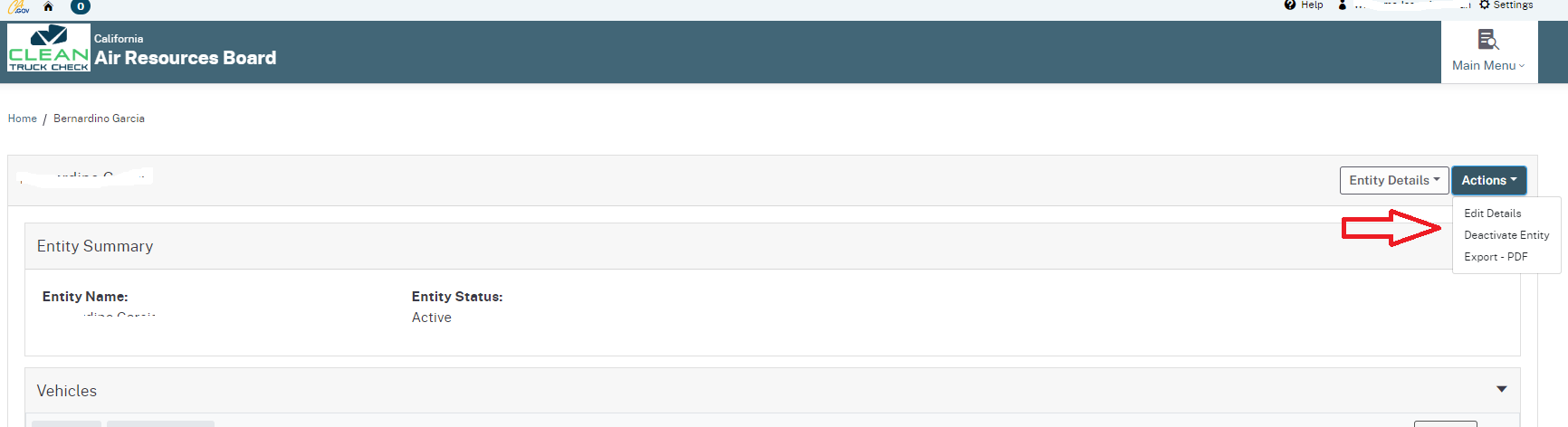
CARB CTC-VIS screenshot: Open company details
Official CARB screenshot · Select to enlarge
STEP 37

Describe your changes

Complete the description field and continue to Entity Information.
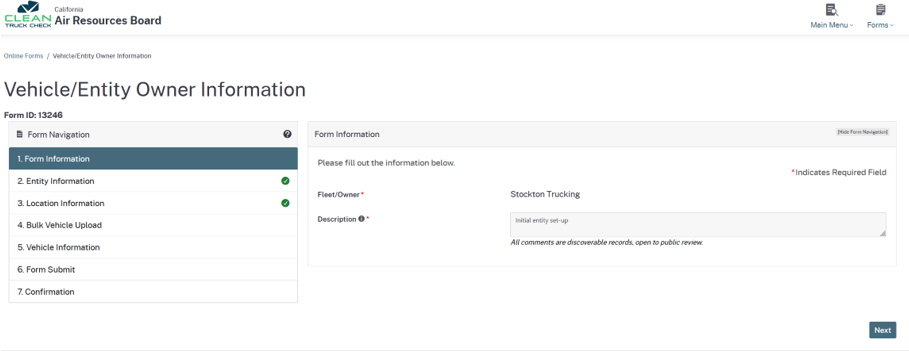
CARB CTC-VIS screenshot: Describe your changes
Official CARB screenshot · Select to enlarge
STEP 38

Update entity information

Edit the appropriate business fields and review them before continuing.
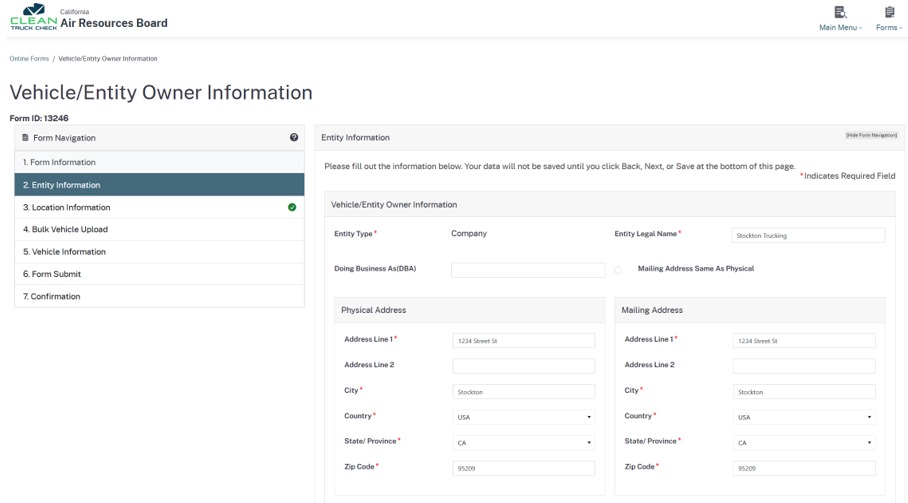
CARB CTC-VIS screenshot: Update entity information
Official CARB screenshot · Select to enlarge
STEP 39

Review locations

Continue through Location Information, checking the applicable entries.
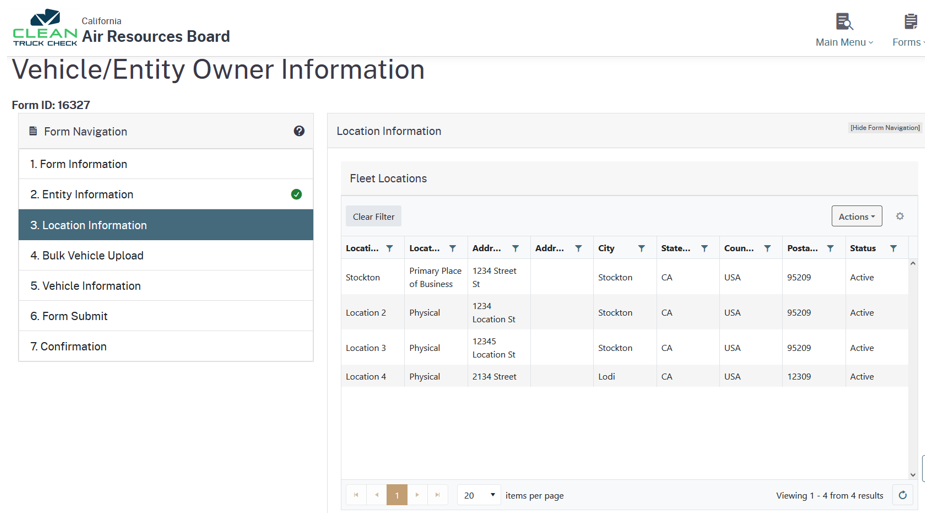
CARB CTC-VIS screenshot: Review locations
Official CARB screenshot · Select to enlarge
STEP 40

Continue through bulk upload

Proceed through the bulk-upload step when no vehicle upload is needed.
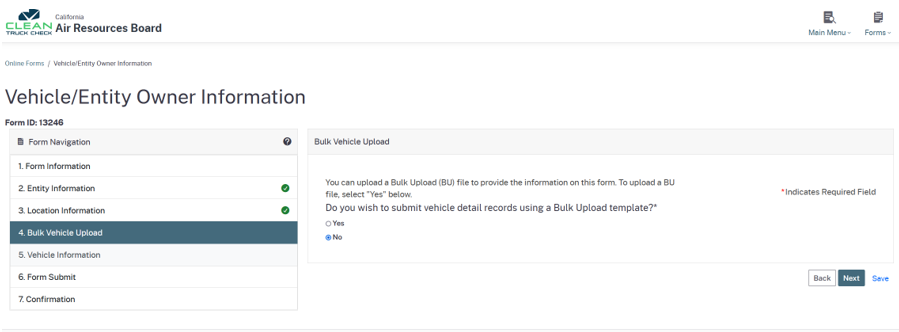
CARB CTC-VIS screenshot: Continue through bulk upload
Official CARB screenshot · Select to enlarge
STEP 41

Review vehicle information

Continue through the vehicle step before reaching final submission.
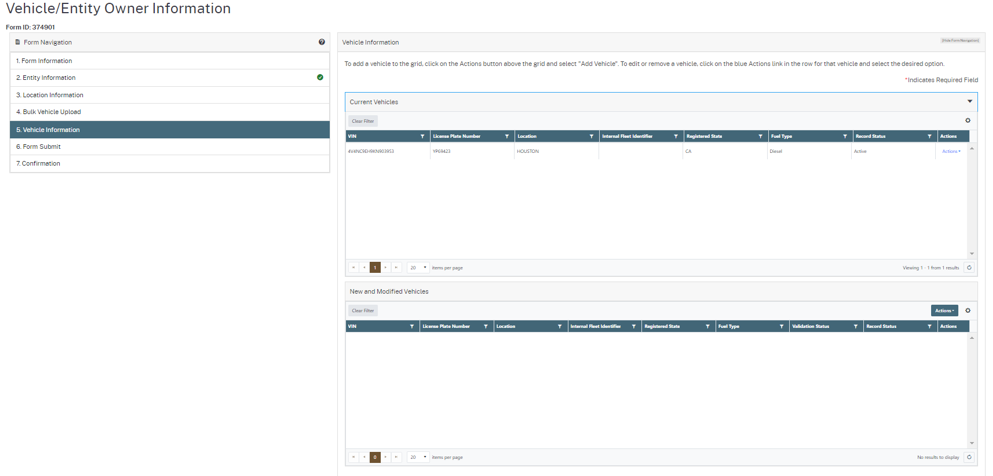
CARB CTC-VIS screenshot: Review vehicle information
Official CARB screenshot · Select to enlarge
STEP 42

Submit company changes

Certify that the information is correct and submit the form.
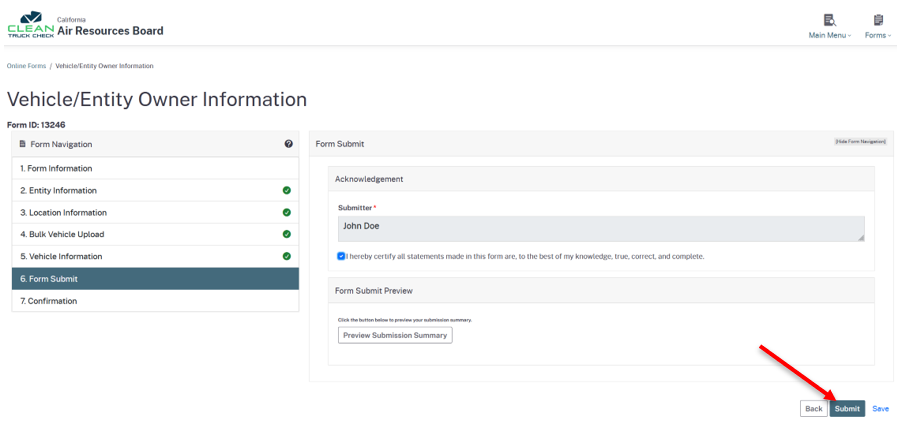
CARB CTC-VIS screenshot: Submit company changes
Official CARB screenshot · Select to enlarge
STEP 43

Confirm the update

Close the confirmation and refresh the entity page to check your changes.
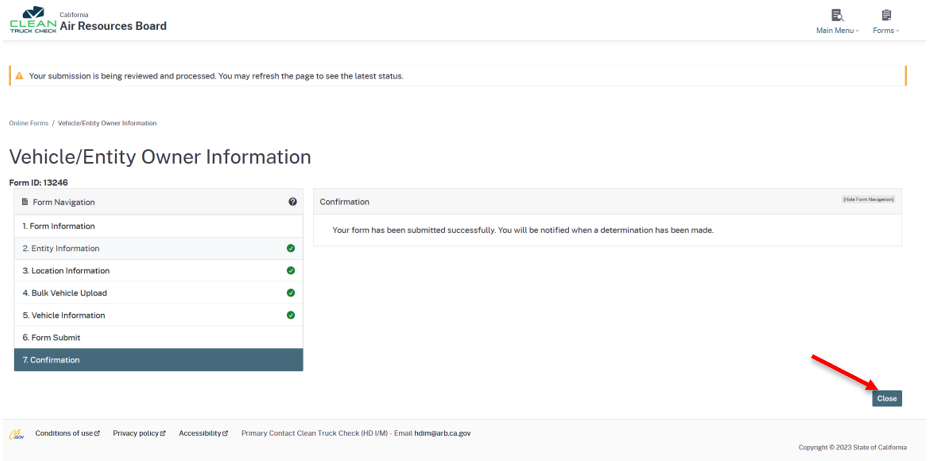
CARB CTC-VIS screenshot: Confirm the update
Official CARB screenshot · Select to enlarge

Maintain your fleet records

STEP 44

Start a deactivation

In My Entity / My Info, use the Vehicles table Actions menu.
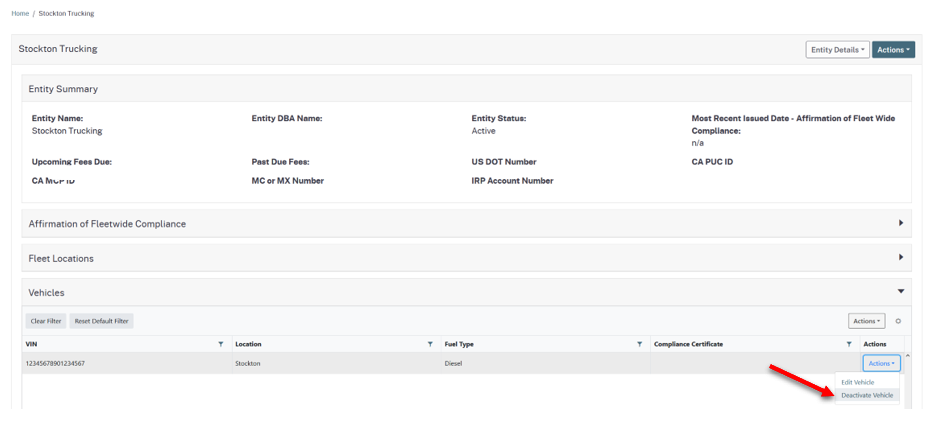
CARB CTC-VIS screenshot: Start a deactivation
Official CARB screenshot · Select to enlarge
STEP 45

Select the current vehicle

In the vehicle-information step, choose Actions, then Deactivate for the intended vehicle.
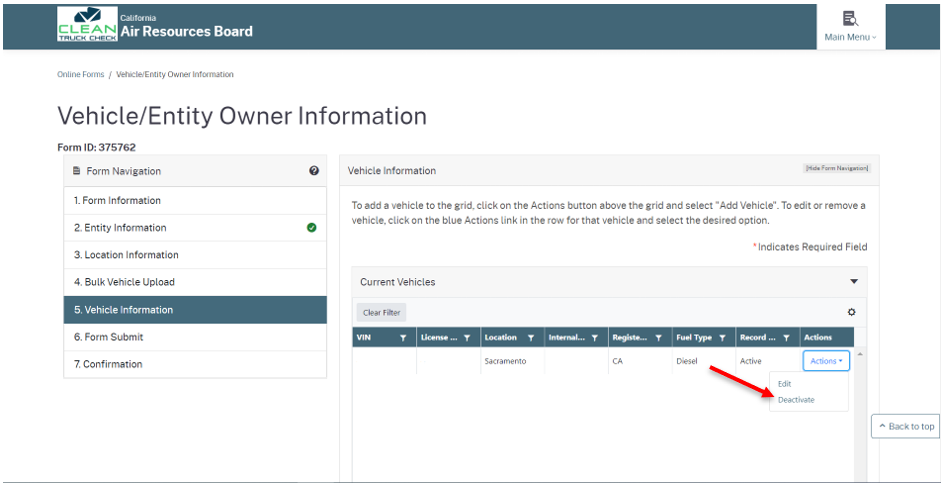
CARB CTC-VIS screenshot: Select the current vehicle
Official CARB screenshot · Select to enlarge
STEP 46

Confirm the intended action

Check the selected vehicle before confirming deactivation.
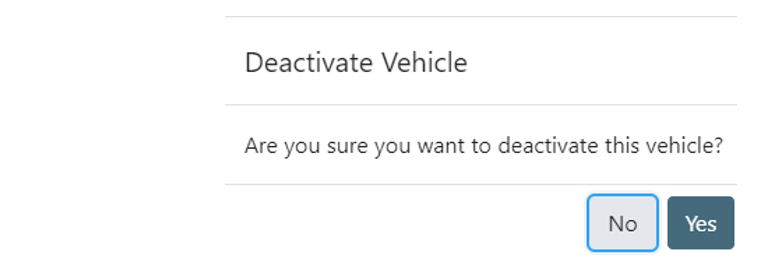
CARB CTC-VIS screenshot: Confirm the intended action
Official CARB screenshot · Select to enlarge
STEP 47

Record the reason

Select the appropriate deactivation reason and save it.
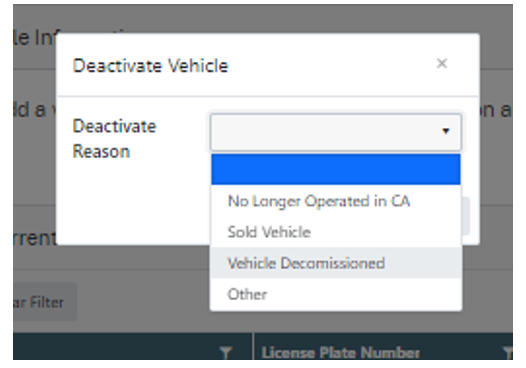
CARB CTC-VIS screenshot: Record the reason
Official CARB screenshot · Select to enlarge
STEP 48

Complete the submission

Verify the changed record in New and Modified Vehicles. Save and submit the entire form.
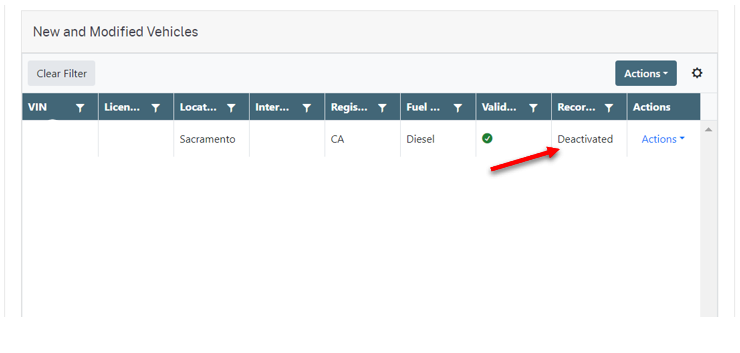
CARB CTC-VIS screenshot: Complete the submission
Official CARB screenshot · Select to enlarge
STEP 49

Add another vehicle

Open New and Modified Vehicles below the current-vehicle list.
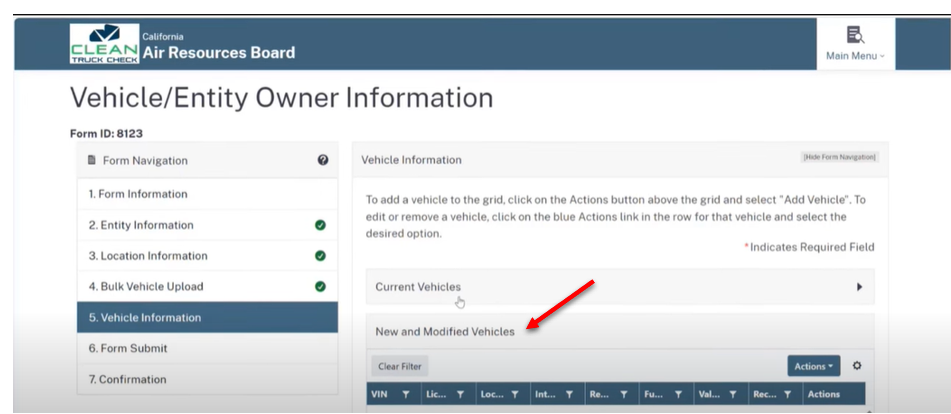
CARB CTC-VIS screenshot: Add another vehicle
Official CARB screenshot · Select to enlarge
STEP 50

Choose Add Vehicle

Select Actions, then Add Vehicle in the vehicle-information form.
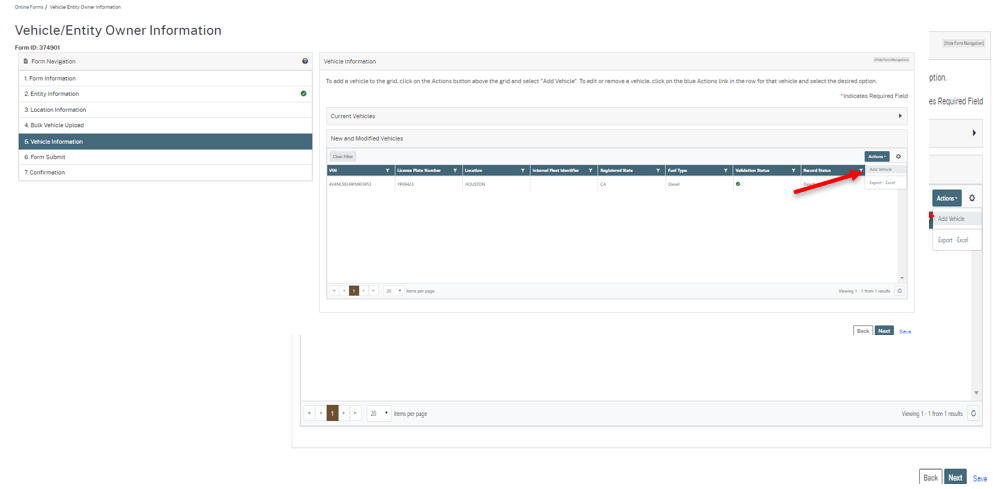
CARB CTC-VIS screenshot: Choose Add Vehicle
Official CARB screenshot · Select to enlarge
STEP 51

Complete the new record

Enter the required vehicle details. For pending plates, follow the current official guide’s temporary entry instructions.
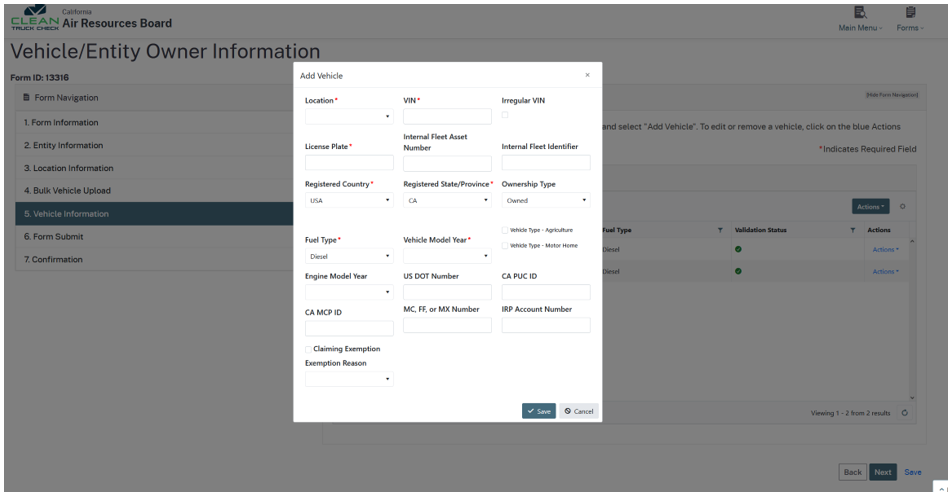
CARB CTC-VIS screenshot: Complete the new record
Official CARB screenshot · Select to enlarge
STEP 52

Save and certify

Review the new record, continue, certify accuracy and submit.
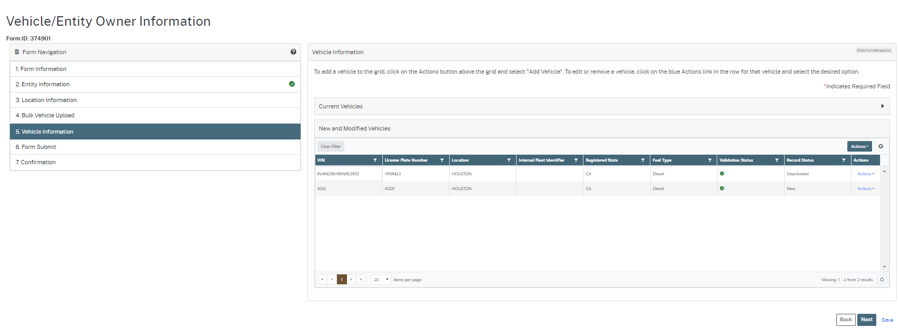
CARB CTC-VIS screenshot: Save and certify
Official CARB screenshot · Select to enlarge
STEP 53

Edit an existing vehicle

From the Vehicles table, choose Actions, then Edit Vehicle.
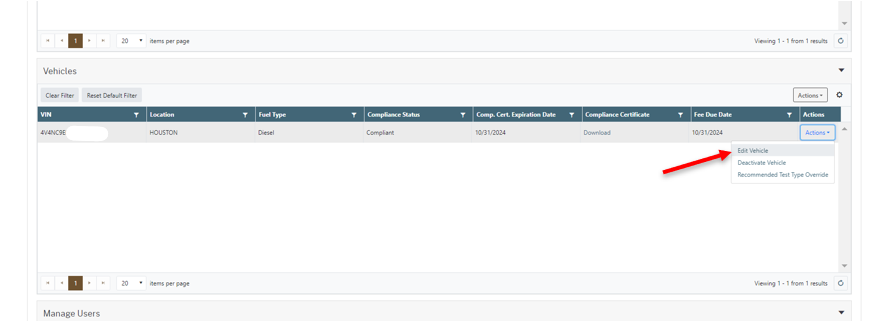
CARB CTC-VIS screenshot: Edit an existing vehicle
Official CARB screenshot · Select to enlarge
STEP 54

Review allowed edits

Open the current vehicle record and edit the permitted fields. Some fields, including VIN, cannot be changed through this process; follow CARB instructions.
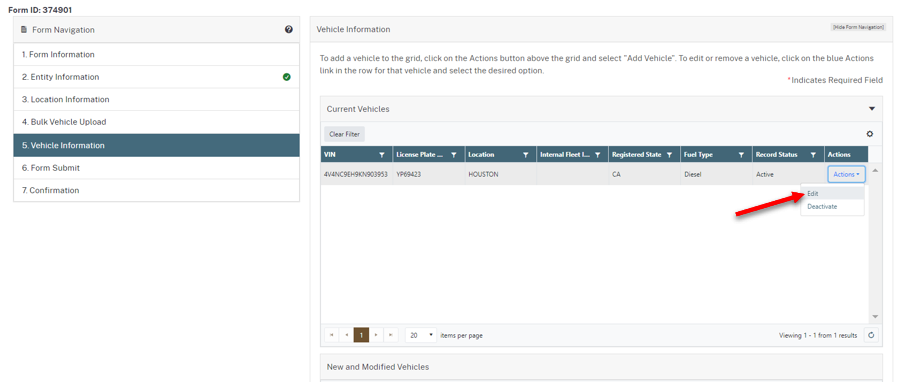
CARB CTC-VIS screenshot: Review allowed edits
Official CARB screenshot · Select to enlarge

Check payment and compliance status

STEP 55

Review payment history

Use the account’s transaction history to check whether payment is still processing or complete.
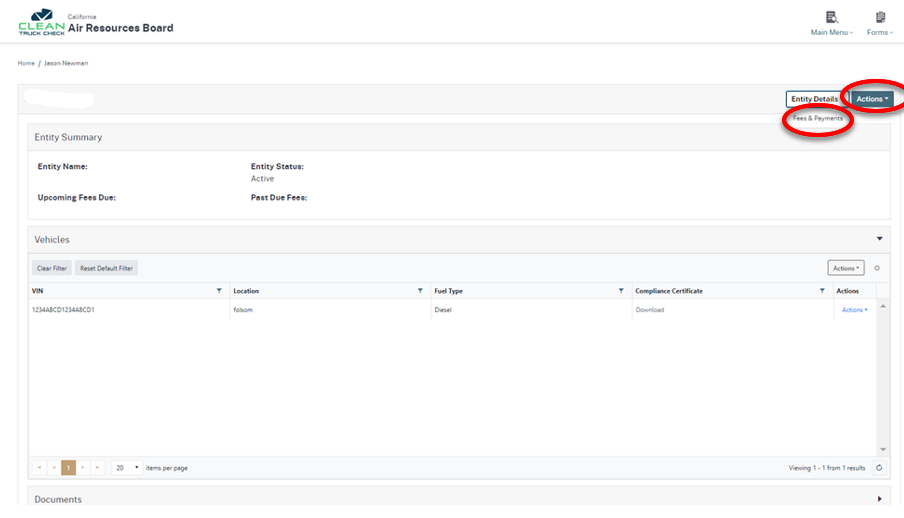
CARB CTC-VIS screenshot: Review payment history
Official CARB screenshot · Select to enlarge
STEP 56

Check your receipt

Match the vehicle and amount on the receipt to your intended payment.
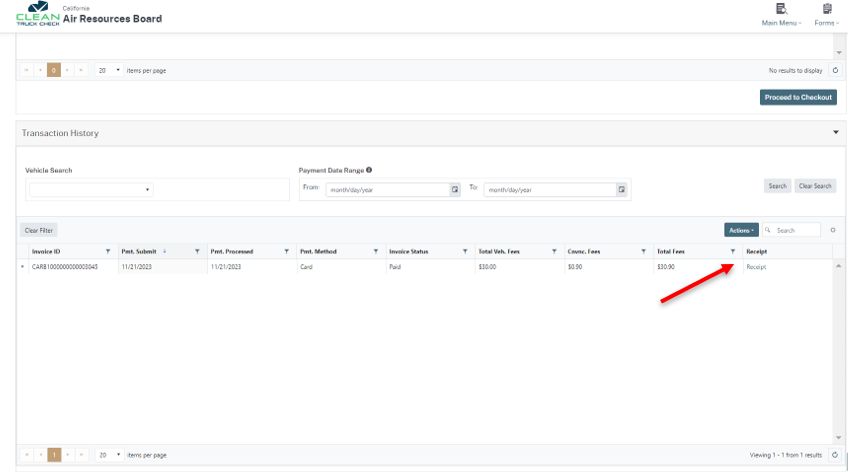
CARB CTC-VIS screenshot: Check your receipt
Official CARB screenshot · Select to enlarge
STEP 57

Download payment records

Use Receipt in Transaction History to retain a copy for your records.

CARB CTC-VIS screenshot: Download payment records
Official CARB screenshot · Select to enlarge
STEP 58

Check the vehicle certificate

Review the VIN and compliance status in the vehicle list. Download a certificate when available after all required steps are complete.
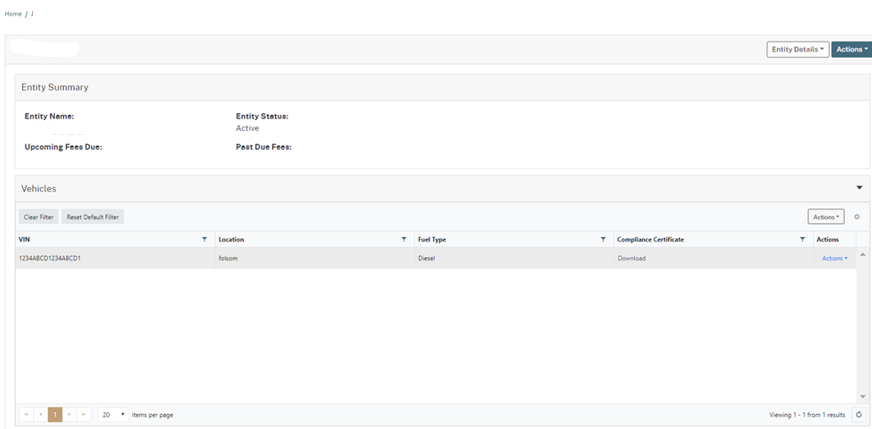
CARB CTC-VIS screenshot: Check the vehicle certificate
Official CARB screenshot · Select to enlarge
STEP 59

Keep an accurate certificate

Save or print the official certificate. Do not edit the document. Incorrect vehicle information must be resolved through CARB’s reporting process.
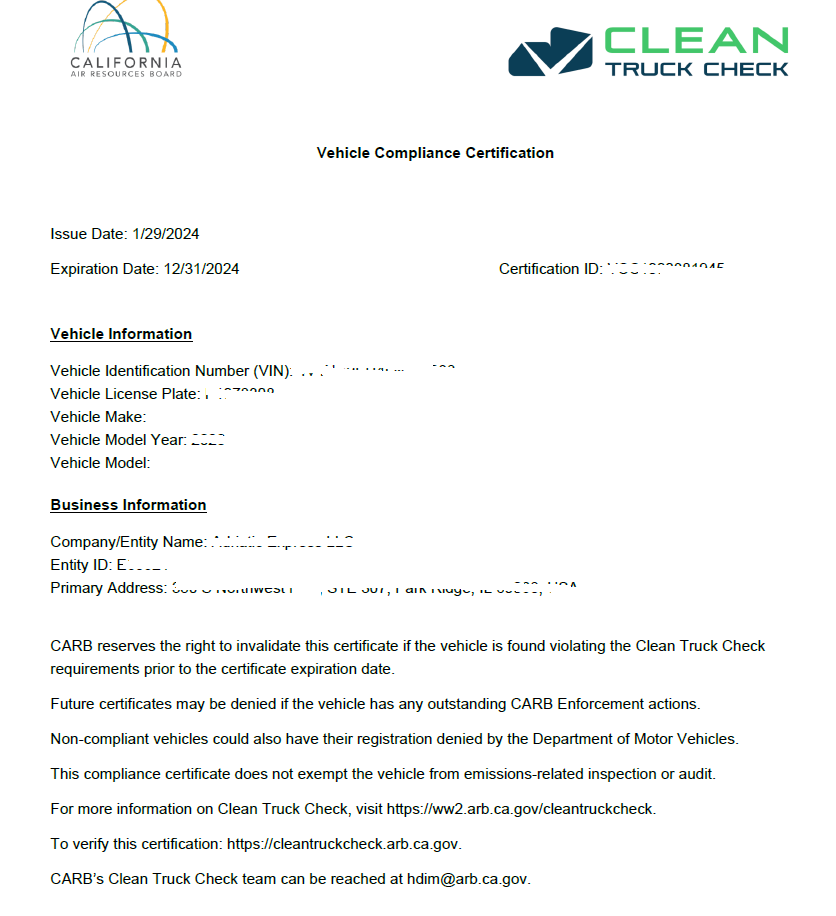
CARB CTC-VIS screenshot: Keep an accurate certificate
Official CARB screenshot · Select to enlarge